 Screen Recorder Pro
How to record a clean, easy-to-follow screen tutorial
A good tutorial is prepared before you press Record. Here is the method, step by step.
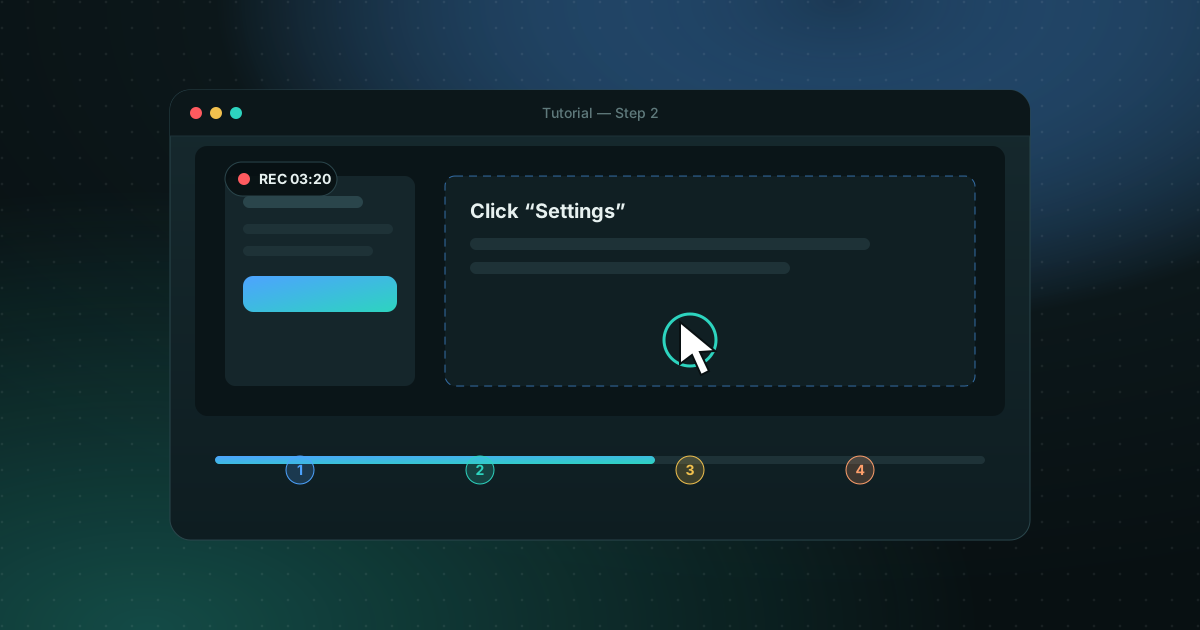
1. Write a short outline
Note in a few lines what viewers will be able to do at the end, then split it into 3 to 6 steps. An outline avoids the silences and retakes that make a video longer.
2. Prepare your screen
- Close unneeded windows and hide desktop icons.
- Use a neutral background and a readable resolution; enlarge text if needed.
- Turn off notifications and close personal tabs.
3. Record only the useful area
Instead of filming the whole screen, draw a region around the app you are showing. Text gets bigger and easier to read, especially on a phone. With Screen Recorder Pro you draw the region, then start recording with a shortcut.
4. Take care of your voice
Keep the microphone about ten centimeters from your mouth, record in a quiet room and do a short test first. A clear voice matters more than a perfect picture.
5. Talk while you act
Announce the click before you make it: "I'm clicking Settings." Viewers follow without hunting for the cursor. If you are reading a script, a teleprompter avoids hesitation.
6. Edit, add subtitles and chapters
Trim the start and end, cut mistakes, then add subtitles: much of the video watched online is watched without sound. Chapters let viewers jump to the step they need. These tools are built into Screen Recorder Pro, so there is no need to open another program.
Checklist before publishing
- Audio is clear from start to finish.
- No private information appears on screen.
- The title says clearly what the video teaches.
- Chapters and subtitles are in place.
How long should a screen tutorial be?
Short beats complete. Viewers usually come with one question, so aim for one task per video and split anything longer into parts or chapters.
| Type of video | Typical length | Tip |
|---|---|---|
| Quick how-to | 1 to 3 minutes | Show the result in the first 10 seconds |
| Feature walkthrough | 3 to 8 minutes | Add chapters so people can jump ahead |
| Full course lesson | 8 to 20 minutes | Record in sections and join them after |
Screen Recorder Pro's Free plan records up to 5 minutes per clip, which fits most quick how-tos. Pro removes the limit and adds chapters and subtitles generated on your own PC.
Frequently asked questions
How long should a tutorial video be?
Three to eight minutes for a focused topic. Beyond that, split it into several videos or add chapters.
Should I record the whole screen?
No. A region around the app you are showing gives larger text and a more readable video.
Should I script my tutorial?
Write the steps, not every word. A list of 5 to 7 steps keeps you on track and still sounds natural.
Sources
Try Screen Recorder Pro for free
Record screen, webcam and sound on Windows. Free plan, no watermark, to try it; Pro lifts the limits.
Download Screen Recorder ProKeep reading
How to record your screen on Windows 11 with audio
Recording the screen is easy; getting clean sound is where most recordings go wrong. Here is how to capture system sound, your microphone, or both.
Read the guide
Game screen recorder with no watermark for Windows PC
Recording gameplay without a watermark is possible for free. Here are the realistic options on a Windows PC and what each one costs you in performance and convenience.
Read the guide
How to record your screen on Windows with no watermark
Windows already ships free tools, but each has limits. Here is how to choose based on what you want to film.
Read the guide