 Screen Recorder Pro
Game screen recorder with no watermark for Windows PC
Recording gameplay without a watermark is possible for free. Here are the realistic options on a Windows PC and what each one costs you in performance and convenience.
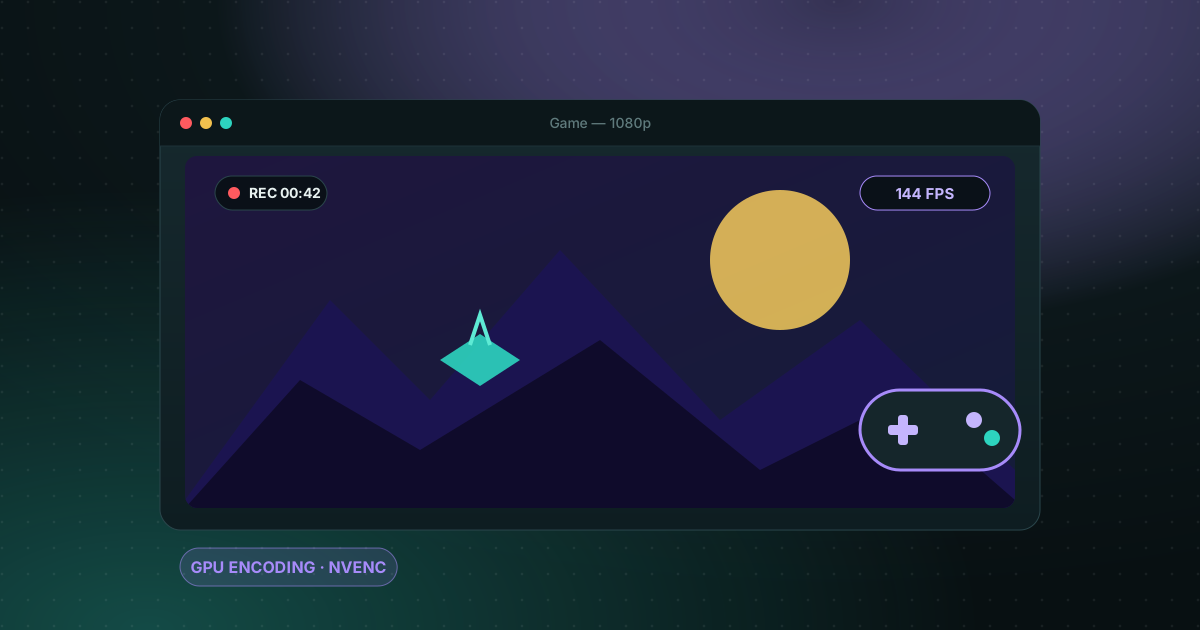
What matters when recording a game
- No dropped frames: recording must not make the game stutter.
- GPU encoding: encoding on the graphics card leaves the processor free for the game.
- No watermark: clean video you can publish.
- Game sound and your voice: both captured in the same file.
Xbox Game Bar
Built into Windows: press Win + Alt + R while the game is running. It adds no watermark and is the quickest way to start. It records the game window only, with limited settings.
Your graphics card tool
NVIDIA and AMD both provide a recording tool with their drivers (the NVIDIA app, AMD Software). They use the graphics card's encoder, so the impact on the game is small, and they add no watermark. They only work with their own hardware.
OBS Studio
Free, open source and with no watermark. It is very flexible, but you have to build scenes and sources and tune settings first. If that is too much, read our guide to a simpler alternative to OBS Studio.
Screen Recorder Pro
Screen Recorder Pro captures through the Windows graphics layer and can encode on your graphics card (NVENC) so the processor stays free. It was tuned for games and animated pages. The free plan has no watermark but is limited to 720p and 5 minutes per recording; Pro lifts the time limit for longer sessions.
Tips to avoid dropped frames
- Choose the graphics card encoder instead of the processor.
- Save recordings to a fast, uncluttered drive, ideally an SSD.
- Close the browser and other apps that you do not need while playing.
- Do a one-minute test and watch the video before a long session.
Which settings should I use to record games?
| Setting | Good starting point | Why |
|---|---|---|
| Frame rate | 60 fps | Fast motion stays smooth |
| Encoder | NVENC on an NVIDIA card | The graphics card encodes, the processor stays free for the game |
| Codec | H.264 for sharing, H.265 for smaller files | H.264 plays everywhere; H.265 saves space |
| Drive | An SSD with free space | A slow disk can cause dropped frames |
Screen Recorder Pro supports all four, and its Free plan records gameplay up to 720p for 5 minutes with no watermark, which is enough to test your settings before you upgrade.
Frequently asked questions
Is there a free game recorder with no watermark?
Yes. Xbox Game Bar, the NVIDIA and AMD tools and OBS Studio add no watermark. Screen Recorder Pro's free plan has none either, within its 720p and 5-minute limit.
Does recording slow my game down?
It can, mostly when the processor does the encoding. Encoding on the graphics card (NVENC on NVIDIA) greatly reduces the impact.
How long can I record on the free plan of Screen Recorder Pro?
Up to 5 minutes per recording at 720p. Pro has no time limit.
Sources
Try Screen Recorder Pro for free
Record screen, webcam and sound on Windows. Free plan, no watermark, to try it; Pro lifts the limits.
Download Screen Recorder ProKeep reading
How to record your screen on Windows 11 with audio
Recording the screen is easy; getting clean sound is where most recordings go wrong. Here is how to capture system sound, your microphone, or both.
Read the guide
How to record your screen on Windows with no watermark
Windows already ships free tools, but each has limits. Here is how to choose based on what you want to film.
Read the guide
How to record a clean, easy-to-follow screen tutorial
A good tutorial is prepared before you press Record. Here is the method, step by step.
Read the guide