 Screen Recorder Pro
How to record a Zoom or Teams meeting on Windows (with sound)
To keep a record of a meeting you need the picture, the other people's voices and your own. Here is the method, with nothing missed.
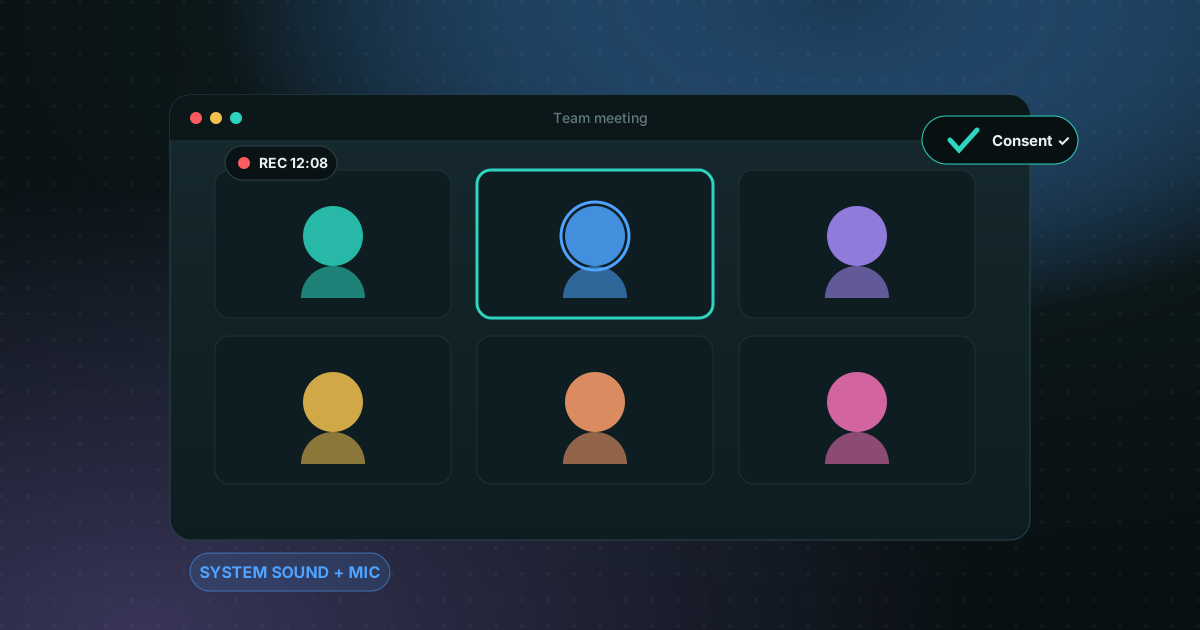
Tell the participants first
In many countries, recording a conversation without the agreement of the people in it is a problem. Announce it at the start of the meeting, or use the recording notice in Zoom or Teams. If in doubt, get written consent.
The two audio sources to capture
A meeting contains two different sounds: the other participants' voices coming out of your speakers (the system sound) and your own voice (the microphone). If only one is recorded, the video is silent on one side. Check that both are on before you start.
Steps with Screen Recorder Pro
- Choose the meeting window, the whole screen or a region.
- Turn on system sound and the microphone. Each source has its own level, with live meters to confirm sound is coming through.
- Start recording with the countdown, then join the meeting.
- Use pause for off-topic moments: the video carries on with no visible cut.
- When you finish, find the recording in your library, then add subtitles and chapters if needed.
Protect what should not appear
A meeting can show emails, messages or documents belonging to other clients. The privacy shield (included in Pro and Business) hides windows or areas: they never reach the video file. Turn notifications off before you start too.
Before you hit Record
- Headphones or speakers: system sound must come out of the device that is being captured.
- A 10-second test to check voice, picture and levels.
- Enough disk space for the planned length.
- The free plan limits recording to 5 minutes at 720p: for a real meeting, use Pro.
Can I record a meeting without telling anyone?
Do not. Recording rules differ by country and by company, and many require everyone's consent. Microsoft Teams, for example, notifies every participant automatically when its built-in recording starts. When you record locally with Screen Recorder Pro, nobody is notified, so say it out loud at the start and keep the confirmation in the video.
Local recording in five steps
- Open Screen Recorder Pro and choose the meeting window, not the full screen.
- Turn on system sound to capture the other people, and your microphone for your own voice.
- Record a 10-second test and play it back to check both voices.
- Turn on Do not disturb so chat previews do not appear.
- Start recording, announce it, and stop when the meeting ends. The file stays on your PC.
Frequently asked questions
Can I record a Zoom or Teams meeting if I am not the host?
Technically yes, with a screen recorder that captures system sound and your microphone. Always tell participants and follow the rules of your organization and your country.
Why does my recording miss the other participants' voices?
System sound is probably not turned on, or the meeting plays through a different audio device than the one being captured. Run a 10-second test before the real meeting.
Are my recordings sent anywhere?
No. With Screen Recorder Pro, videos are created and stored on your own computer.
Where is a local meeting recording saved?
On your own PC, in the folder you chose in Screen Recorder Pro. Nothing is uploaded.
Sources
Try Screen Recorder Pro for free
Record screen, webcam and sound on Windows. Free plan, no watermark, to try it; Pro lifts the limits.
Download Screen Recorder ProKeep reading
How to record your screen on Windows 11 with audio
Recording the screen is easy; getting clean sound is where most recordings go wrong. Here is how to capture system sound, your microphone, or both.
Read the guide
Game screen recorder with no watermark for Windows PC
Recording gameplay without a watermark is possible for free. Here are the realistic options on a Windows PC and what each one costs you in performance and convenience.
Read the guide
How to record your screen on Windows with no watermark
Windows already ships free tools, but each has limits. Here is how to choose based on what you want to film.
Read the guide