 Screen Recorder Pro
How to record your screen on Windows with no watermark
Windows already ships free tools, but each has limits. Here is how to choose based on what you want to film.
Why a watermark is a problem
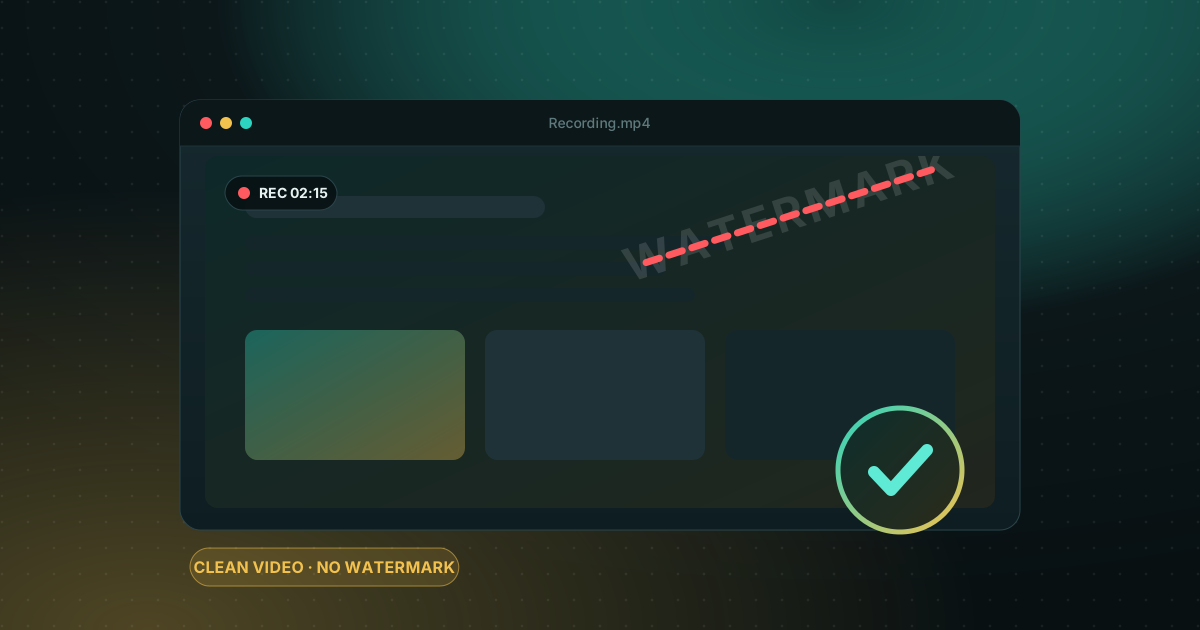
A watermark across a tutorial, a client demo or a training video looks unprofessional. Many free recorders add one to push you toward the paid version, so check what a tool leaves on the final video before you commit to it.
Option 1: Xbox Game Bar (built into Windows)
Press Win + Alt + R to start or stop recording. It is free, fast and has no watermark. The catch is that it records one app at a time: it cannot capture the whole desktop or File Explorer, and it has no region selection.
Option 2: Windows 11 Snipping Tool
Recent versions of the Snipping Tool can record a region of the screen as video. That works for a short clip, but options are limited: no editing, no webcam and few audio settings.
Option 3: OBS Studio
OBS is free, open source and very capable. In return you have to set up scenes and sources before recording, which puts off people who just want to film a five-minute tutorial.
Option 4: a dedicated recorder such as Screen Recorder Pro
Screen Recorder Pro records a full screen, a window or a region you draw, with system audio, microphone and a webcam bubble. Editing, subtitles and chapters are built in, and everything is processed on your PC. The free plan lets you try it (720p, 5 minutes, no watermark); Pro lifts the time limit.
How to choose
- A quick clip of a single app: Xbox Game Bar is enough.
- Advanced setups, at your own pace: OBS Studio.
- Regular tutorials and demos with editing and subtitles: a dedicated recorder.
Settings to check before you hit record
- Resolution and frame rate suited to where the video will be seen (1080p at 30 fps is plenty for a tutorial).
- Audio source: microphone, system sound, or both.
- Notifications turned off so no private message shows up on screen.
- An output folder you know, with enough disk space.
Frequently asked questions
Can I record my screen on Windows for free with no watermark?
Yes. Xbox Game Bar and OBS Studio do not add a watermark. Their limits are elsewhere: Game Bar only captures one app, and OBS needs setup.
Does Screen Recorder Pro leave a watermark?
No. The free plan adds no watermark; it limits recordings to 5 minutes at 720p. Pro has no time limit.
Sources
Try Screen Recorder Pro for free
Record screen, webcam and sound on Windows. Free plan, no watermark, to try it; Pro lifts the limits.
Download Screen Recorder ProKeep reading
How to record your screen on Windows 11 with audio
Recording the screen is easy; getting clean sound is where most recordings go wrong. Here is how to capture system sound, your microphone, or both.
Read the guide
Game screen recorder with no watermark for Windows PC
Recording gameplay without a watermark is possible for free. Here are the realistic options on a Windows PC and what each one costs you in performance and convenience.
Read the guide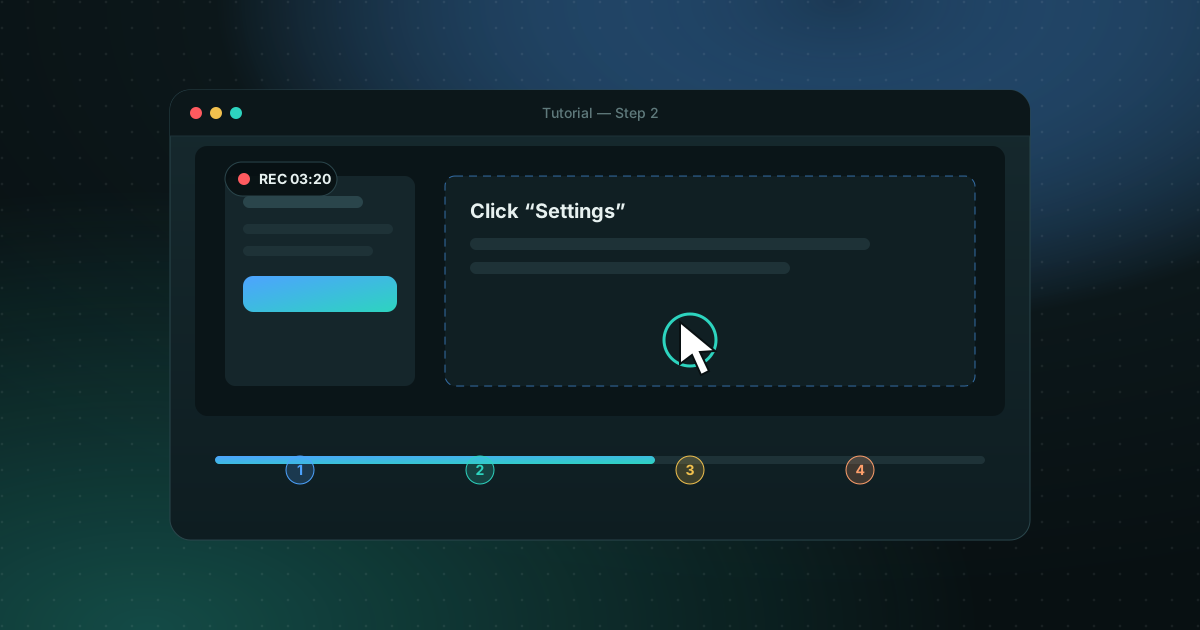
How to record a clean, easy-to-follow screen tutorial
A good tutorial is prepared before you press Record. Here is the method, step by step.
Read the guide