 Screen Recorder Pro
How to record your screen on Windows 11 with audio
Recording the screen is easy; getting clean sound is where most recordings go wrong. Here is how to capture system sound, your microphone, or both.
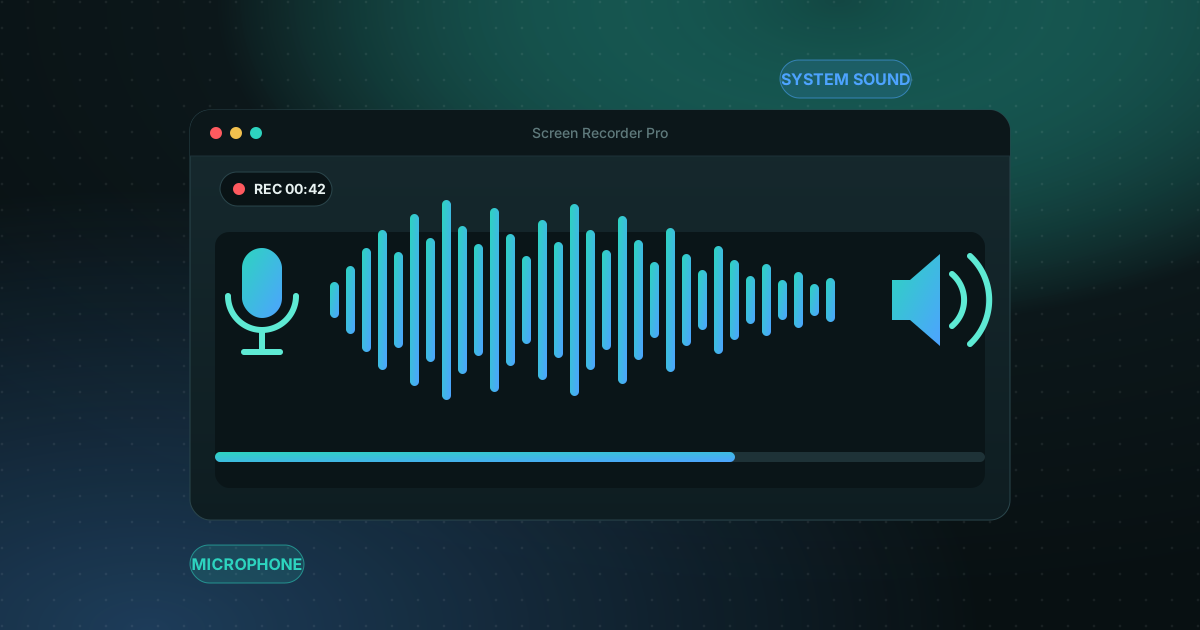
First, decide which audio you need
- System sound: what you hear from the computer, such as a video, a game or the other people in a meeting.
- Microphone: your own voice, for a tutorial or commentary.
- Both: the usual choice for a tutorial or a gameplay video with commentary.
Option 1: Xbox Game Bar (already in Windows 11)
Press Win + G to open it, then Win + Alt + R to start or stop recording. Win + Alt + M turns the microphone on or off while you record. The video is saved in Videos > Captures.
The limit is that Game Bar records one app at a time: it cannot capture the whole desktop or File Explorer, and it has no editor.
Option 2: a dedicated recorder
A recorder such as Screen Recorder Pro captures the whole screen, a region or a window, with system sound and your microphone in the same video, plus the webcam if you want it. Subtitles, chapters and editing are built in. The free plan has no watermark and is limited to 720p and 5 minutes per recording.
If your recording has no sound
- Check that the right output device is selected in the Windows volume menu, especially with Bluetooth headphones or a monitor with speakers.
- Open the volume mixer and make sure the app you are recording is not muted.
- In Settings > Privacy & security > Microphone, allow apps to use the microphone.
- Make sure the microphone is not muted and is the selected input device.
- Record ten seconds and play them back before the real take.
Recording a meeting with sound
The same two sources apply: system sound for the other participants and the microphone for you. Always tell participants that you are recording. More details in our guide to recording a Zoom or Teams meeting on Windows.
Frequently asked questions
Can I record my screen with audio on Windows 11 for free?
Yes. Xbox Game Bar is free and built in. Screen Recorder Pro also has a free plan with no watermark, limited to 720p and 5 minutes per recording.
Why is my screen recording silent?
Usually the wrong output device is selected, the app is muted in the volume mixer, or the microphone is blocked in Windows privacy settings. Check those three, then test with a ten-second recording.
How do I record only the system sound, without my voice?
Turn the microphone off before recording. In Game Bar press Win + Alt + M; in a dedicated recorder, disable the microphone source.
Sources
Try Screen Recorder Pro for free
Record screen, webcam and sound on Windows. Free plan, no watermark, to try it; Pro lifts the limits.
Download Screen Recorder ProKeep reading
Game screen recorder with no watermark for Windows PC
Recording gameplay without a watermark is possible for free. Here are the realistic options on a Windows PC and what each one costs you in performance and convenience.
Read the guide
How to record your screen on Windows with no watermark
Windows already ships free tools, but each has limits. Here is how to choose based on what you want to film.
Read the guide
How to record a clean, easy-to-follow screen tutorial
A good tutorial is prepared before you press Record. Here is the method, step by step.
Read the guide