 Screen Recorder Pro
How to hide passwords and private data when recording your screen
One second is enough for a password or a private message to appear in your video. Here is how to prevent it.
What leaks most often
- Chat or email notifications that pop up at the wrong moment.
- The address bar, open tabs and personal bookmarks.
- Passwords typed or autofilled on screen.
- API keys, tokens and email addresses in files or consoles.
Before recording
- Turn on Windows "Do not disturb" to silence notifications.
- Use a clean browser profile with no bookmarks or signed-in sessions.
- Close messaging apps.
- Replace real data with sample data.
While recording
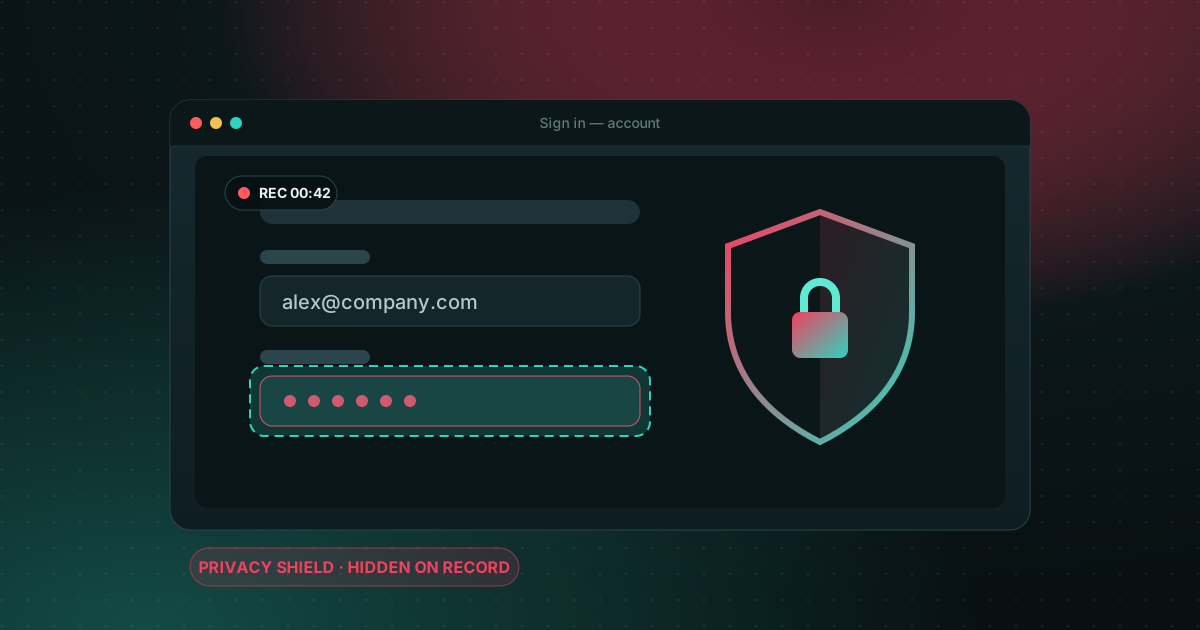
Never type a password on camera. Sign in before you start capturing, or pause the recording while you type. Password managers that fill fields without displaying the value are safer than typing by hand.
Screen Recorder Pro's privacy shield
The privacy shield hides passwords and private details directly in the video, giving you a safety margin even if something appears on screen during capture. It complements the habits above rather than replacing them.
After recording
Watch the whole video before publishing, pausing wherever you opened windows. If a secret was shown, do not rely on blurring alone: change it (new password, regenerated API key).
A 60-second privacy checklist
Run through this table before every recording. It takes about a minute and covers the leaks that show up most often in tutorials, demos and support videos made with Screen Recorder Pro or any other recorder.
| When | Check | Why it matters |
|---|---|---|
| Before | Do not disturb is on | A single chat preview can show a name, a code or a client |
| Before | Record one window or a region, not the full screen | Less visible area means fewer things that can leak |
| Before | Sample data loaded instead of real accounts | Real emails, invoices and keys stay out of the frame |
| During | Pause while you sign in | Nobody can read a password that was never filmed |
| After | Watch at 1x speed before sharing | Fast-forwarding hides one-second flashes |
Which recording mode leaks the least?
Window capture is usually the safest choice: notifications, the taskbar and other apps stay outside the video. Region capture is next, as long as nothing moves into the region. Full-screen capture shows everything, so it needs the most preparation. In Screen Recorder Pro you choose the mode before you press record, and the Pro privacy shield can hide extra windows or areas on top of that.
Frequently asked questions
What if a password showed up in the video?
Change it immediately, then trim or mask that section before publishing. Blurring alone is not enough if the video has already been shared.
Do notifications appear in the recording?
Yes, if they show inside the captured area. Turn on Do not disturb before you start.
Is blurring enough to hide a password in a video?
No. Blur can sometimes be reversed and the video may already have been copied. Change the password, then cut or cover the section.
Sources
Try Screen Recorder Pro for free
Record screen, webcam and sound on Windows. Free plan, no watermark, to try it; Pro lifts the limits.
Download Screen Recorder ProKeep reading
How to record your screen on Windows 11 with audio
Recording the screen is easy; getting clean sound is where most recordings go wrong. Here is how to capture system sound, your microphone, or both.
Read the guide
Game screen recorder with no watermark for Windows PC
Recording gameplay without a watermark is possible for free. Here are the realistic options on a Windows PC and what each one costs you in performance and convenience.
Read the guide
How to record your screen on Windows with no watermark
Windows already ships free tools, but each has limits. Here is how to choose based on what you want to film.
Read the guide